

Help › Getting started
Finding your way: the menus
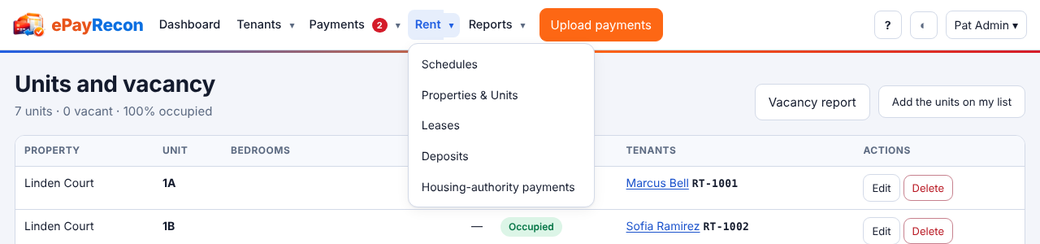
The top bar has five items. Each one with a ▾ opens a menu: click the ▾ (or the item's name, which also takes you to its main page), or use the keyboard.
| Item | What is in it |
|---|---|
| Dashboard | Your figures at a glance. |
| People ▾ | The list, families or households (when your kind of organization has them), contacts, importing the list, "How to pay" notices and the people with no contact email. |
| Payments ▾ | Review (with the number waiting), uploads, finalize and rules. The number waiting also shows on the Payments item. |
| Billing ▾ | Schedules, then the screens of your kind of organization. Its name follows your type: Rent (units, leases, deposits), Invoices, Giving (pledges, funds and campaigns), Lessons (packages), Dues (assessments, or memberships and renewals), Fees (programs and seasons), Tuition. |
| Reports ▾ | All reports, your saved reports, statements, and shortcuts to the reports used most by your kind of organization. |
On the right: Upload payments, the ? Help menu (Help for this page, Help center, the User's Guide, Contact support), light or dark, and your name ▾ (Account, Sign-ins & devices, Two-step sign-in; for Owners and Admins also Organization settings, Members, Access log and Audit log; switching organization; Sign out).
Keyboard
- Tab to an item's ▾ and press Enter (or ↓) to open its menu.
- ↑ ↓ move through the menu, Home and End jump to the first and last item, Enter opens one.
- Esc closes the menu and returns to its ▾. Clicking anywhere else closes it too.
On a phone
The top bar becomes one Menu button. It opens the same groups as a list you can expand one at a time; the section you are in starts open.
What you see depends on your role
Viewers don't see importing, uploading or the notices; only Owners and Admins see Organization settings, Members and the logs. See Invite your team and roles.
Still stuck? Contact us.